
|

|

|

|
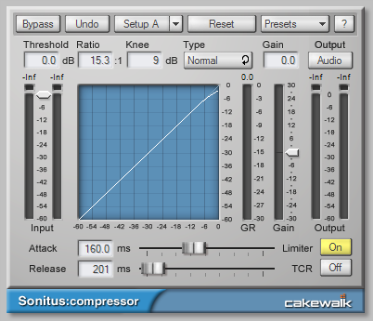
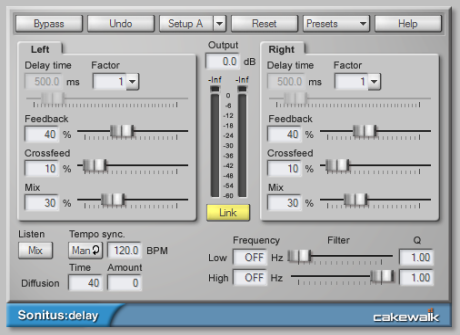
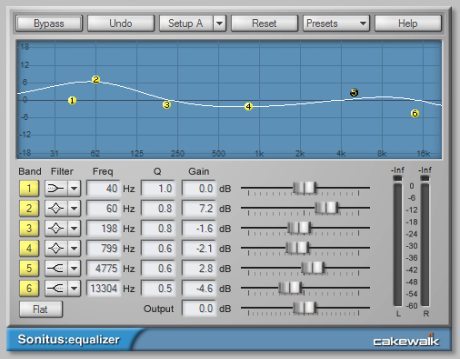
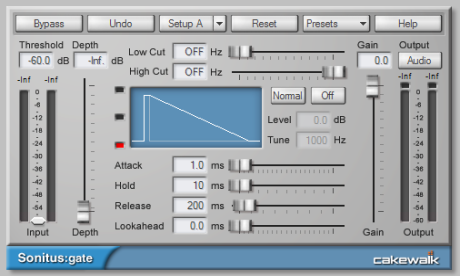
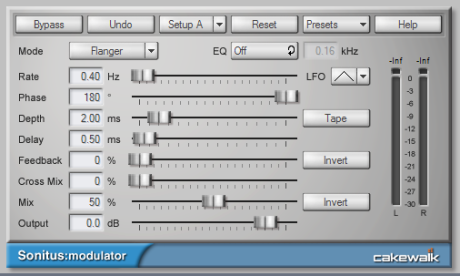
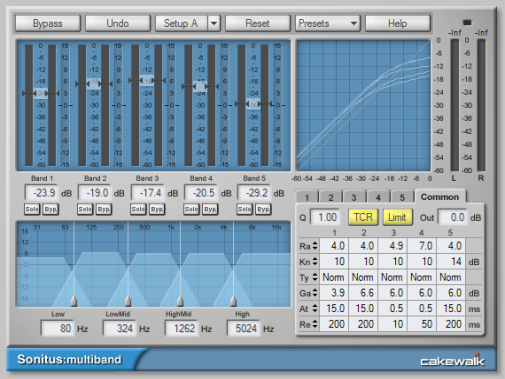
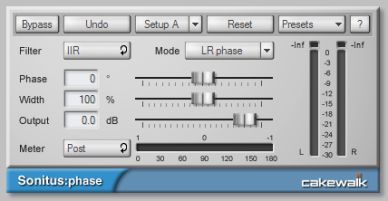
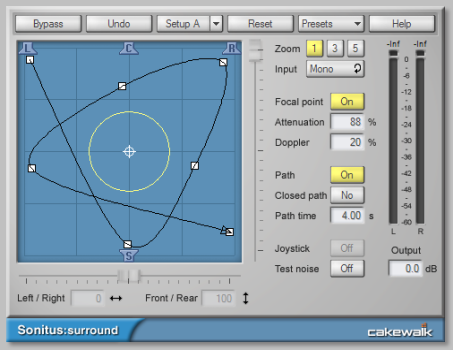
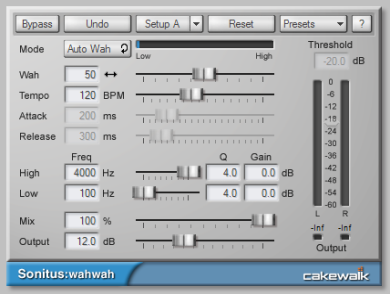
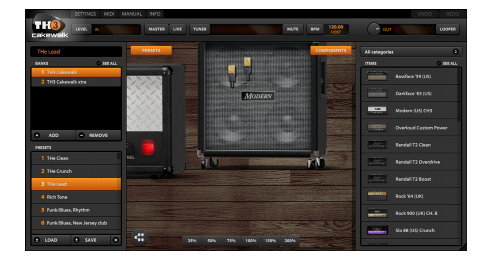
Figure 1100. Boost 11 Peak Limiter.The Boost 11 Peak Limiter is a transparent peak limiting and volume maximizing plug-in for mixing and mastering purposes; it is designed to reduce peak levels without coloring the sound. Boost 11 uses a “look-ahead” limiter algorithm to prevent output clipping and PDR (Program Dependent Release) to minimize pumping (audible fluctuations of the volume) and maximize the loudness. “Look-ahead” means the limiter analyzes the audio input ahead of time by delaying the output for approximately 1.5 ms. Boost 11 supports sampling rates up to 192 kHz, mono and stereo operation, and double precision processing.For more information, see the Boost 11 Peak Limiter online Help.Figure 1101. BREVERB 2 Cakewalk.Figure 1102. ProChannel.Figure 1103. Sonitus fx: Compressor.For more information, see the Sonitus fx: Compressor online Help.Figure 1104. Sonitus fx: Surround Compressor.For more information, see the Sonitus fx: Surround Compressor online Help.Figure 1105. Sonitus fx: Delay.For more information, see the Sonitus fx: Delay online Help.Figure 1106. Sonitus fx: EQ.For more information, see the Sonitus fx: EQ online Help.Figure 1107. Sonitus fx: Gate.For more information, see the Sonitus fx: Gate online Help.Figure 1108. Sonitus fx: Modulator.For more information, see the Sonitus fx: Modulator online Help.Figure 1109. Sonitus fx: Multiband.For more information, see the Sonitus fx: Multiband online Help.Figure 1110. Sonitus fx: Phase.






Tip - Searching Documentation
Tip: To search for a specific topic, type your search query in the Search Cakewalk.com field at the top right of this page.
When the search results appear, click which product's documentation you would like to search to filter the search results further.
Note - Using Offline Help
Note: If you prefer to always use offline Help, go to Edit > Preferences > File > Advanced in your Cakewalk software and select Always Use Offline Help.
If you are not connected to the internet, your Cakewalk software will default to showing offline help until an internet connection becomes available.